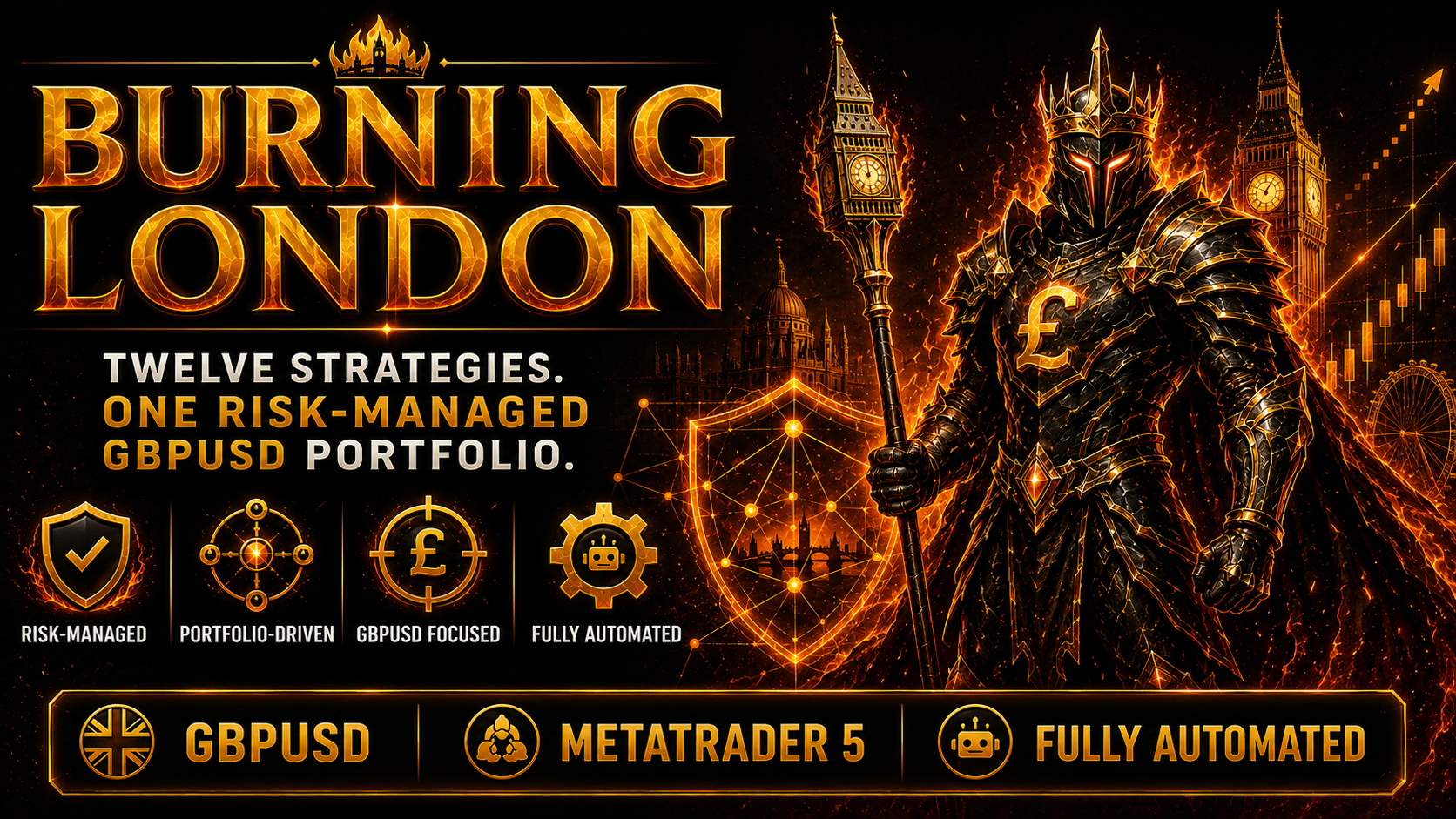
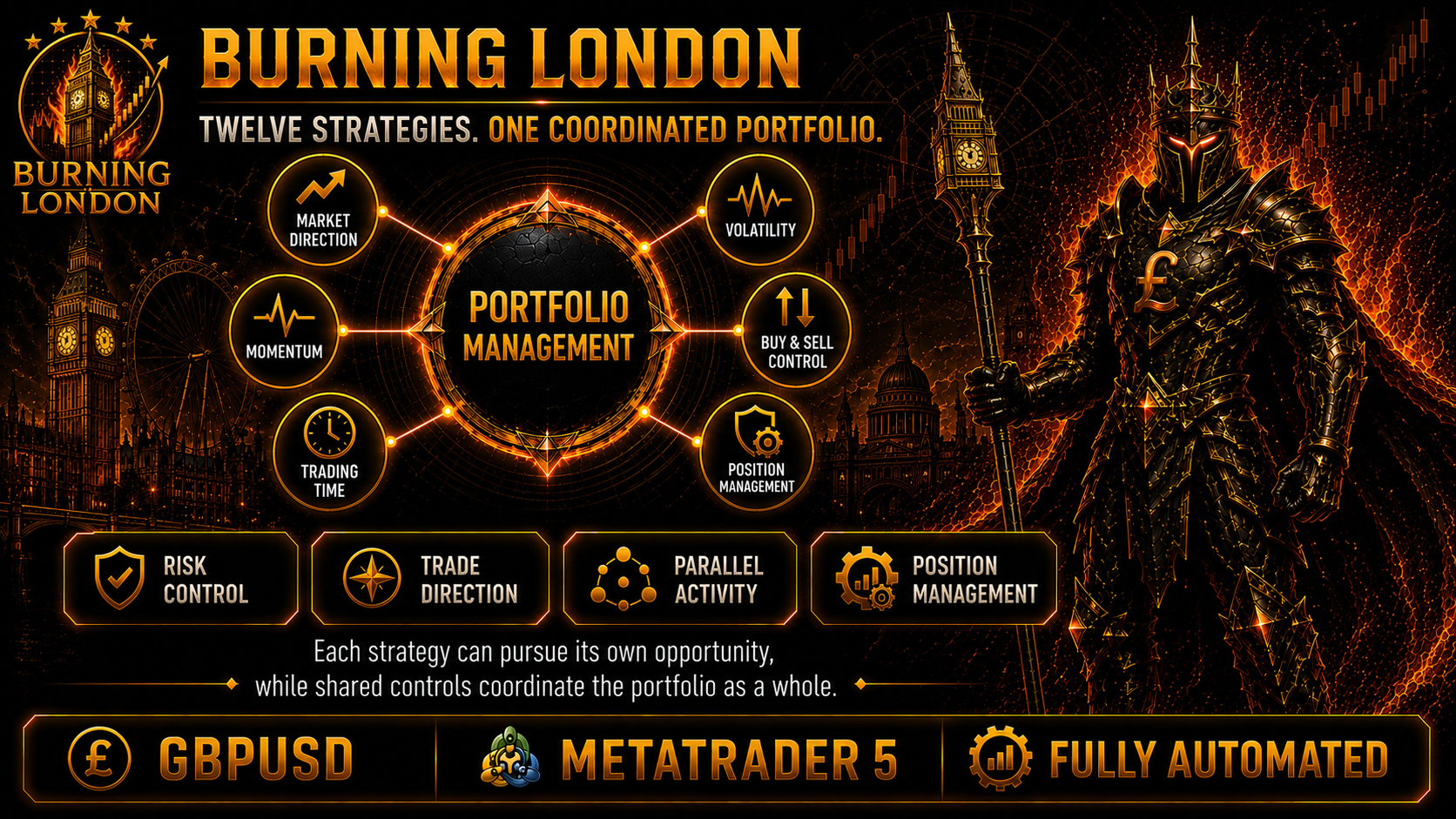
GBPUSD does not behave the same way every day. Burning London was built around that reality. Instead of relying on one trading idea, twelve internal strategies look for their own opportunities while one portfolio layer coordinates risk, direction, timing and simultaneous activity.
Before Entry
Every new trade receives an initial Stop Loss and a position size calculated from the selected risk target.
During the Trade
Open positions are managed through ATR-based trailing instead of one fixed Take Profit.
Across the Portfolio
Shared controls coordinate Buy and Sell risk, trading times, spread limits and parallel strategy activity.
Twelve internal GBPUSD strategies are managed as one coordinated portfolio.
Quick Start
Install Burning London from your MQL5 purchases.
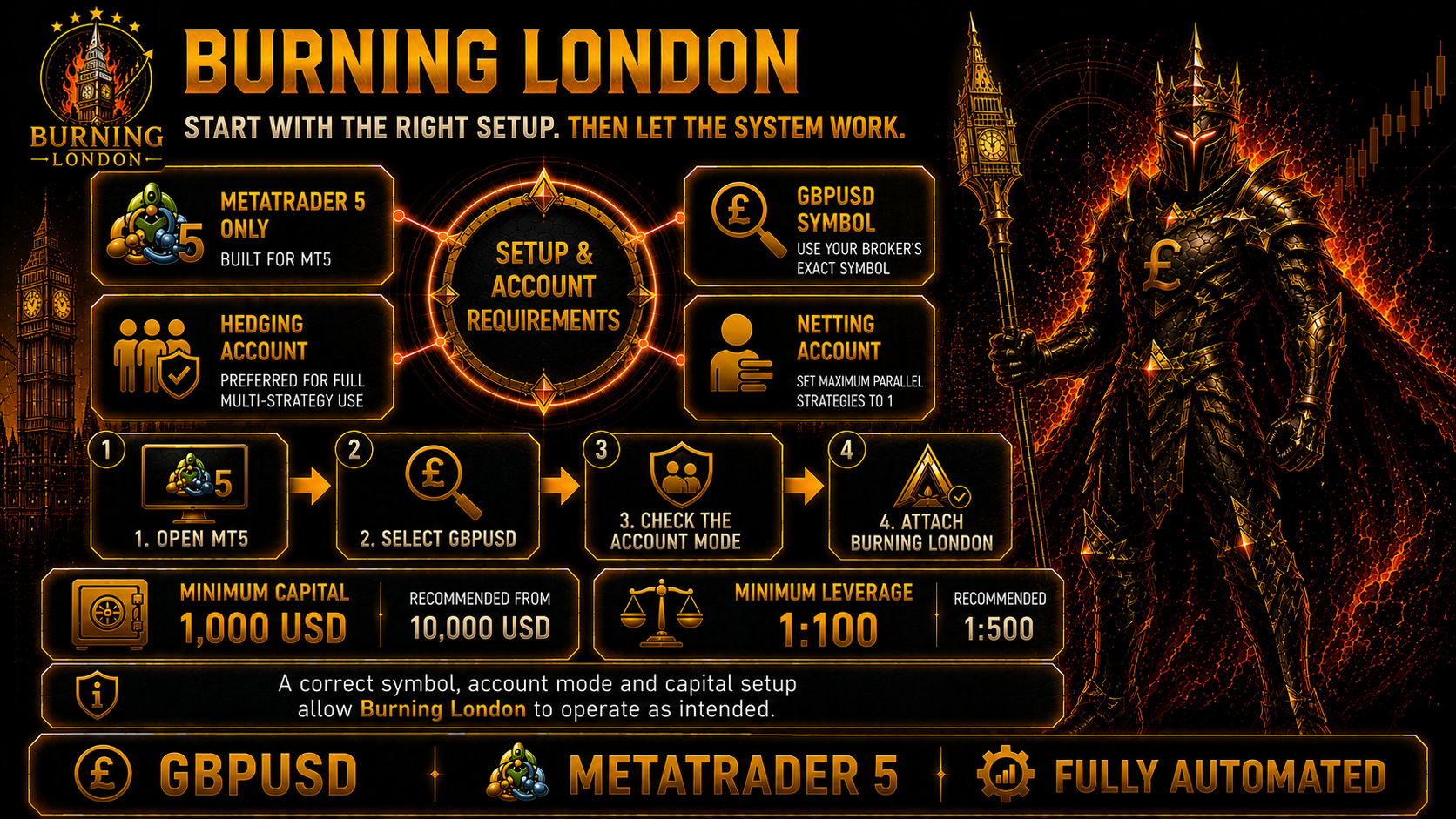
Open your broker's exact GBPUSD symbol. Include a broker-specific suffix when one is used.
Attach Burning London to one GBPUSD chart.
Enable Allow Algo Trading and the terminal's Algo Trading button.
Select a matching broker preset or configure the exact symbol and spread limits manually.
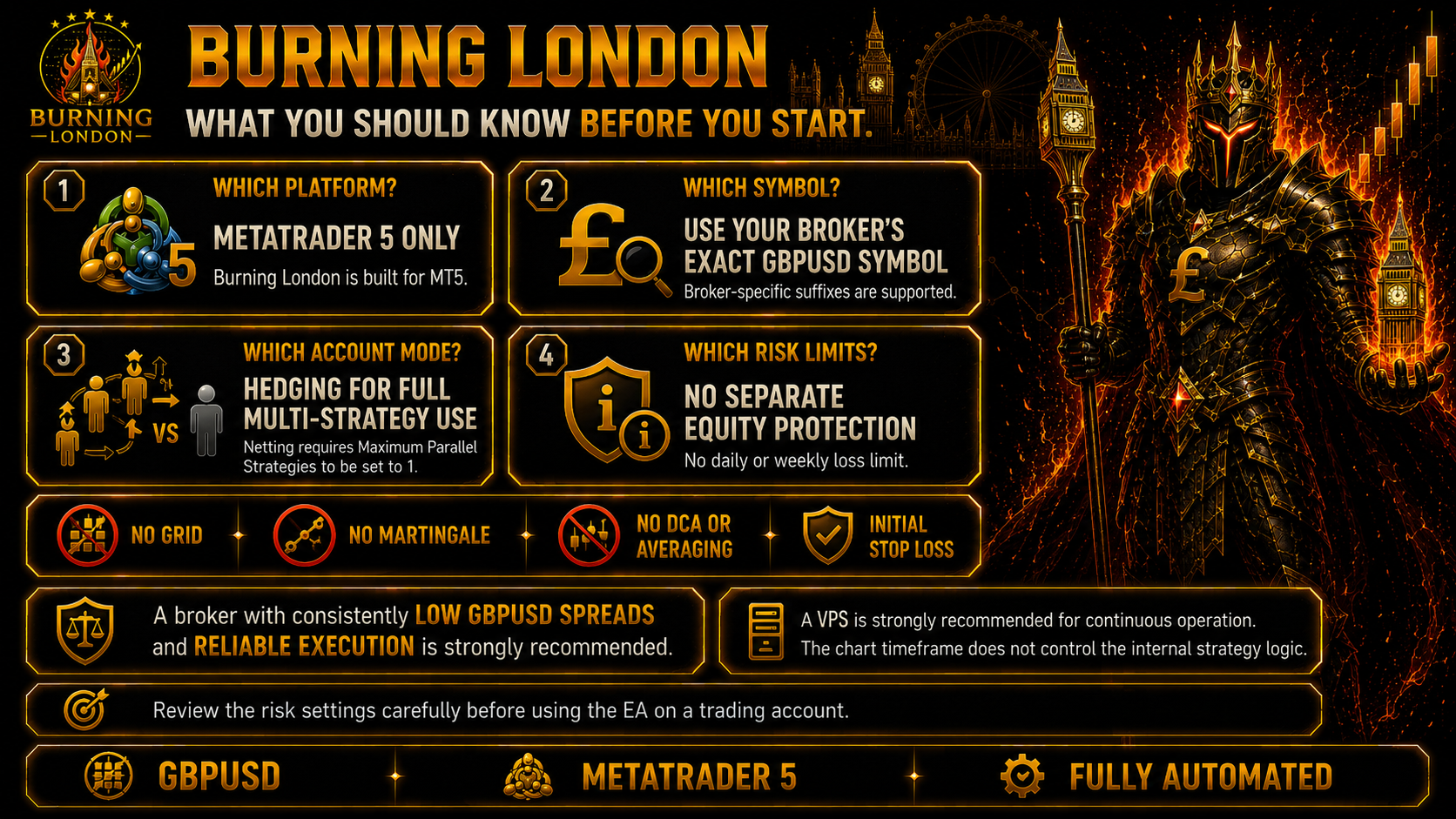
Review Buy and Sell risk and the account mode. Use Hedging for multi-strategy operation. On Netting, set Max. parallel running strategies to 1.
Run a Strategy Tester verification before live use.
Purchase Burning London on MQL5 Market
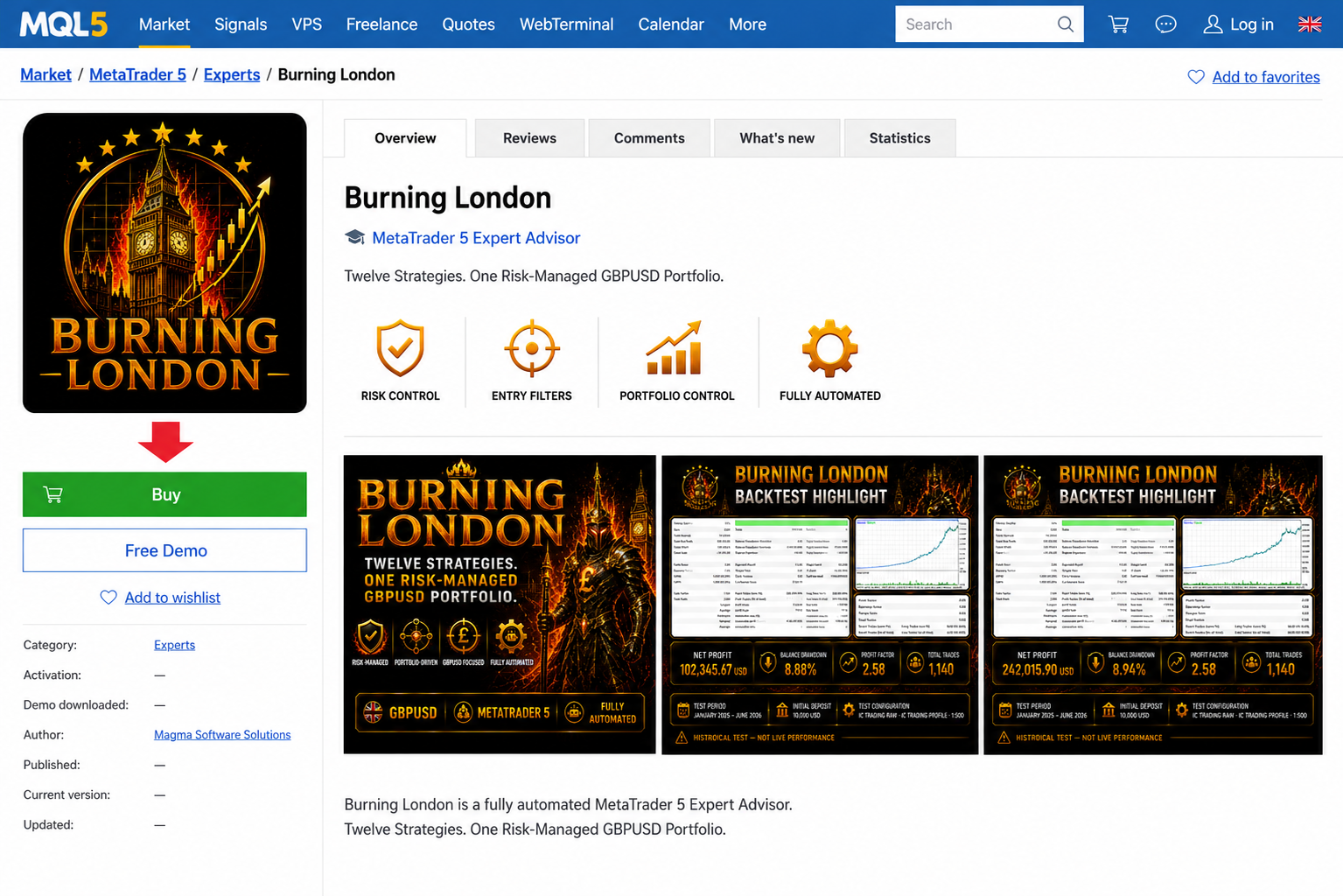
Open the Burning London product page. Review the current product information, price, rental options and free demo.
Click Buy.
Sign into the MQL5 account you want to use in MetaTrader 5.
Check the live order information. Confirm the current price and activation information shown by MQL5.
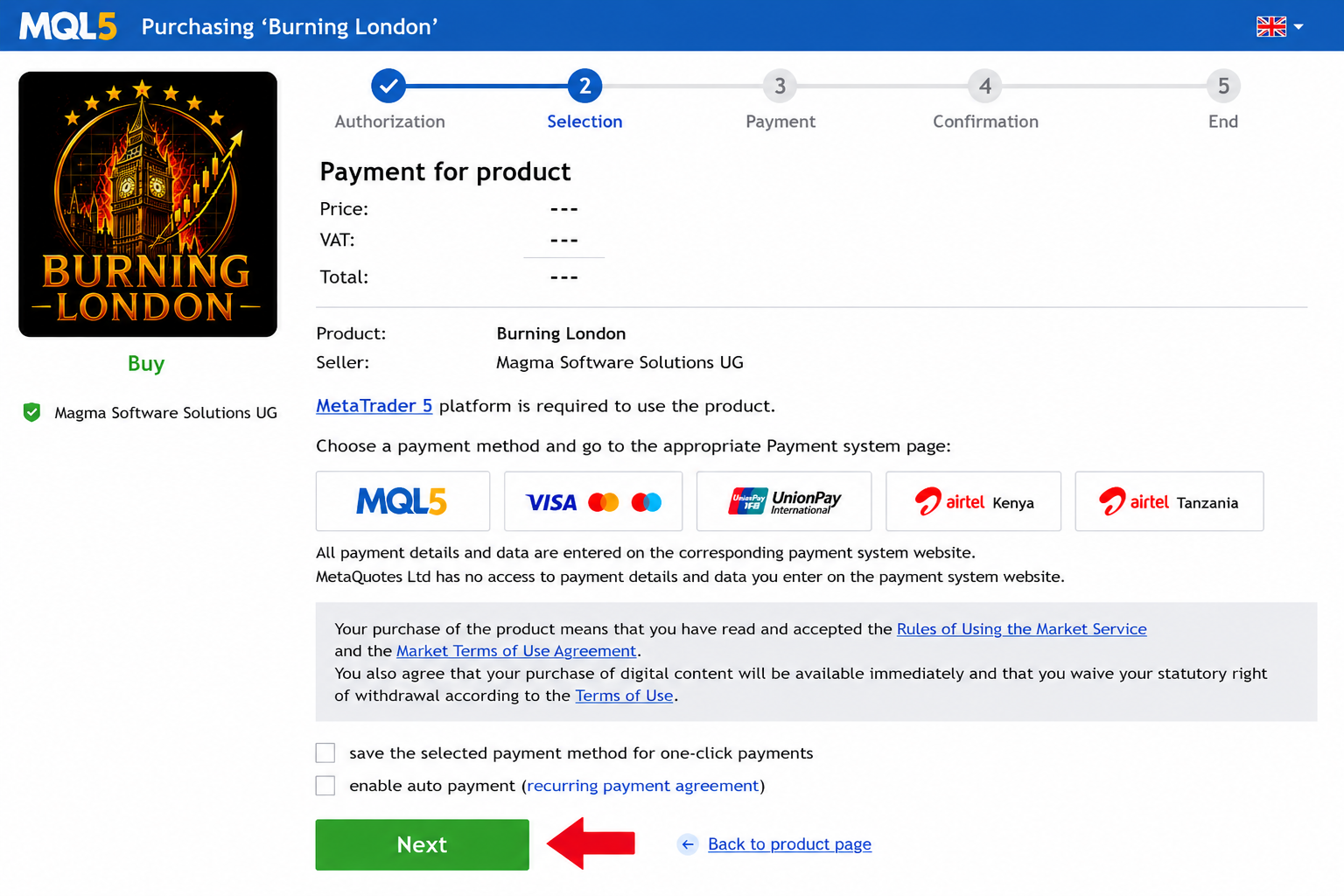
Select a payment method and complete the checkout.
The current price, rental conditions and activation allowance are controlled by MQL5. Always use the live information shown during checkout.
The screenshots are visual guides. The live MQL5 interface, payment methods and commercial information can change.
Burning London product page with Buy, Rent and Free Demo.Burning London order selection without an invented price.
Download and Install
Complete these three screens in order.
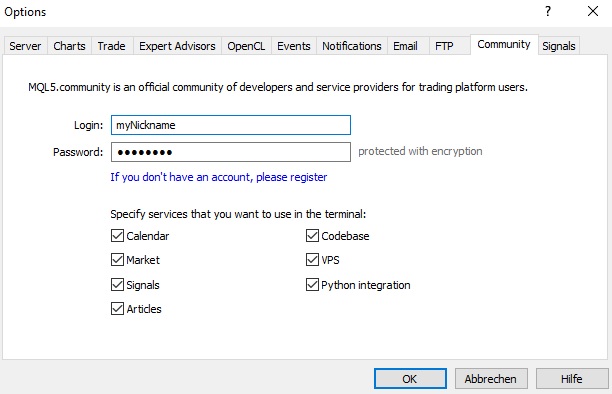
1. Log into the MQL5 account used for the purchase
Open Tools → Options → Community and use your MQL5 login, not your email address.
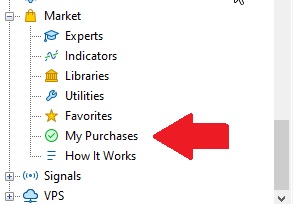
2. Open My Purchases
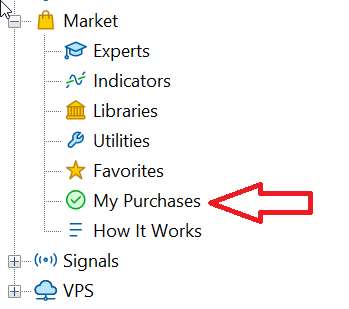
Open View → Navigator, expand Market and click My Purchases.
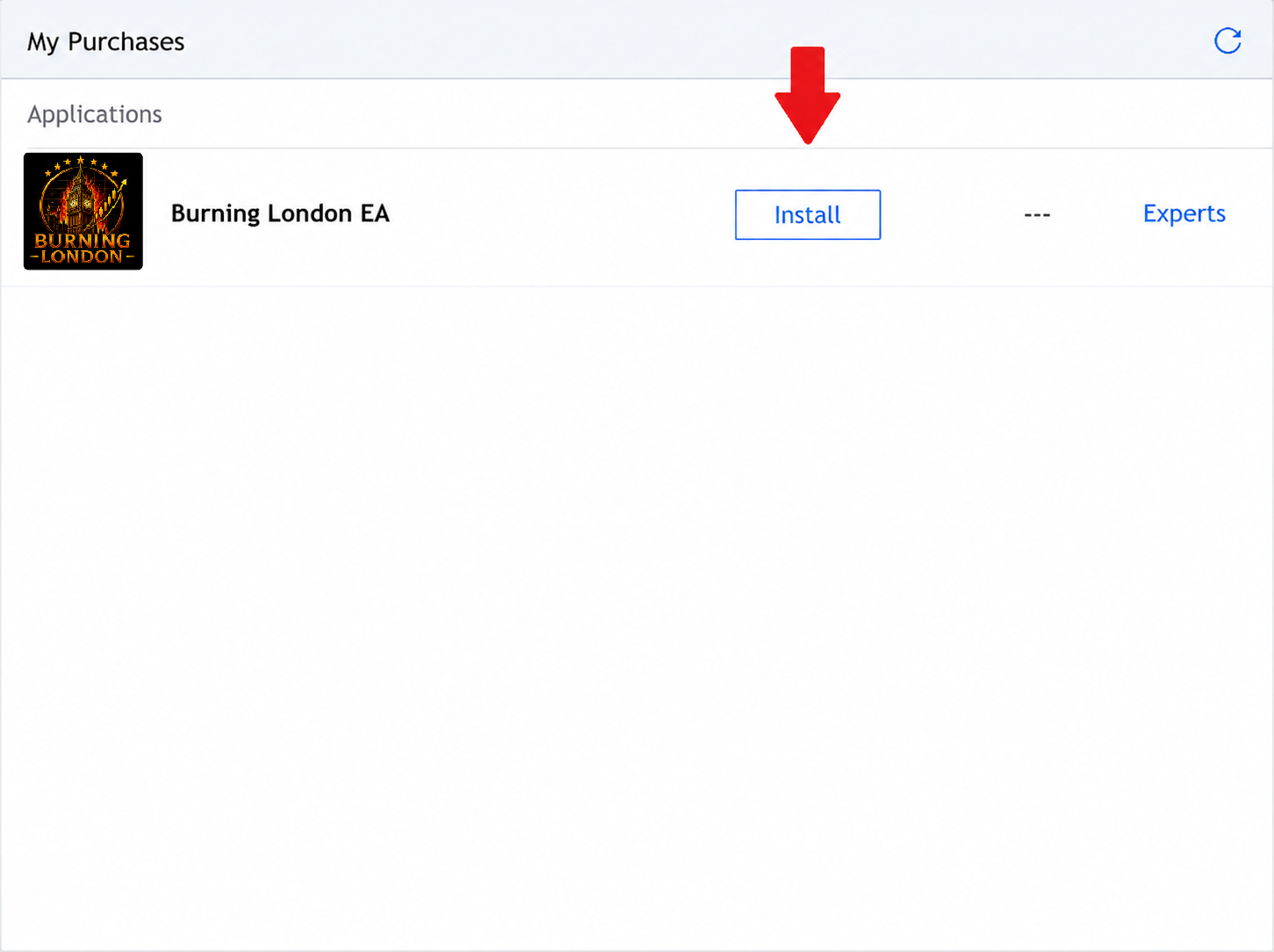
3. Install Burning London
Select Burning London and click Install.
Run Your Own Backtest
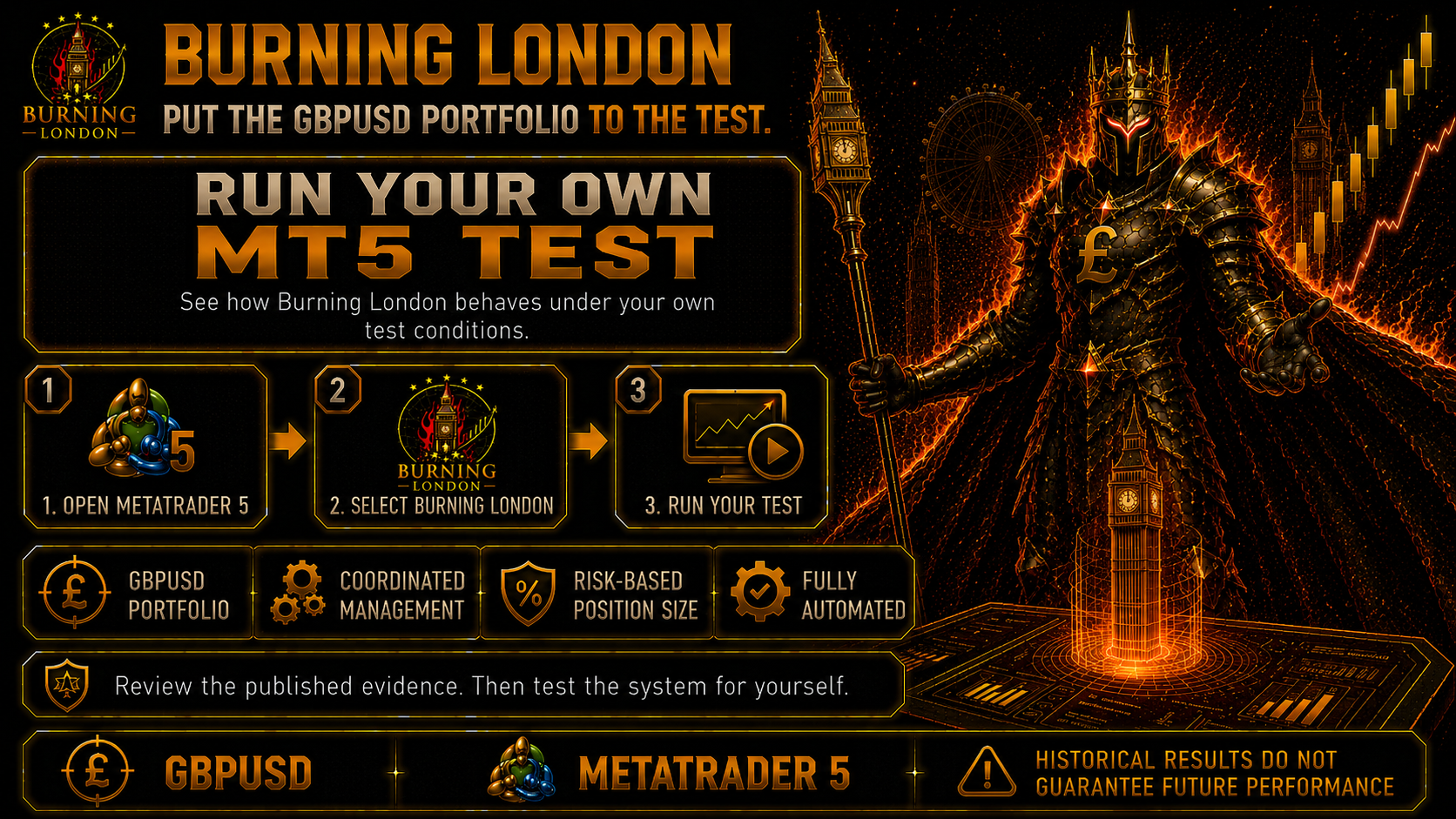
Test Burning London with your own broker data before moving to demo or live operation.
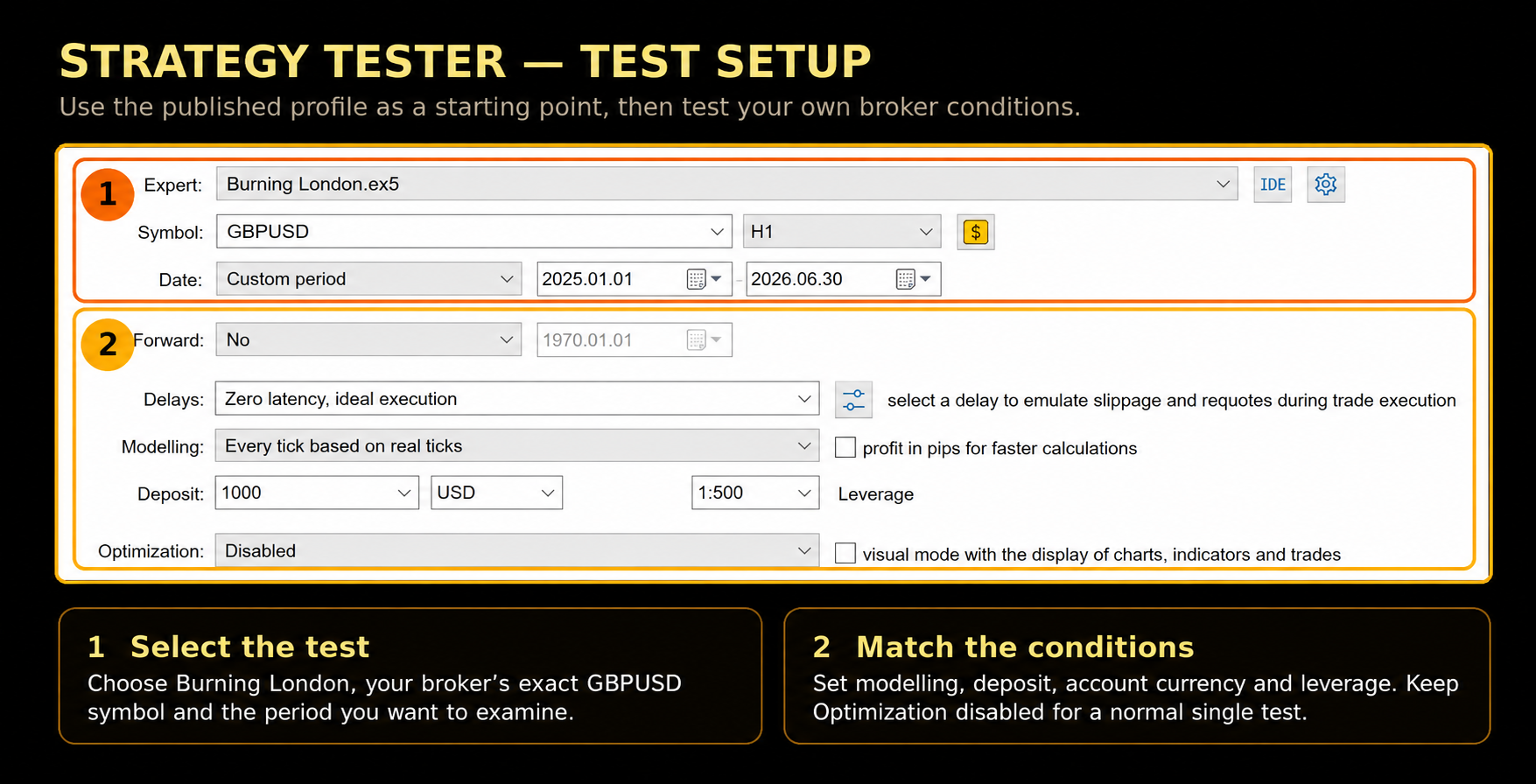
Select Burning London, the exact GBPUSD symbol, the test period, modelling mode, deposit, currency and leverage.
1. Select the test
Open View → Strategy Tester and choose Burning London.
2. Match the conditions
Set symbol, period, deposit, currency and leverage. Keep Optimization disabled for a normal test.
3. Start and verify
Review the complete report and the Balance/Equity curve together.
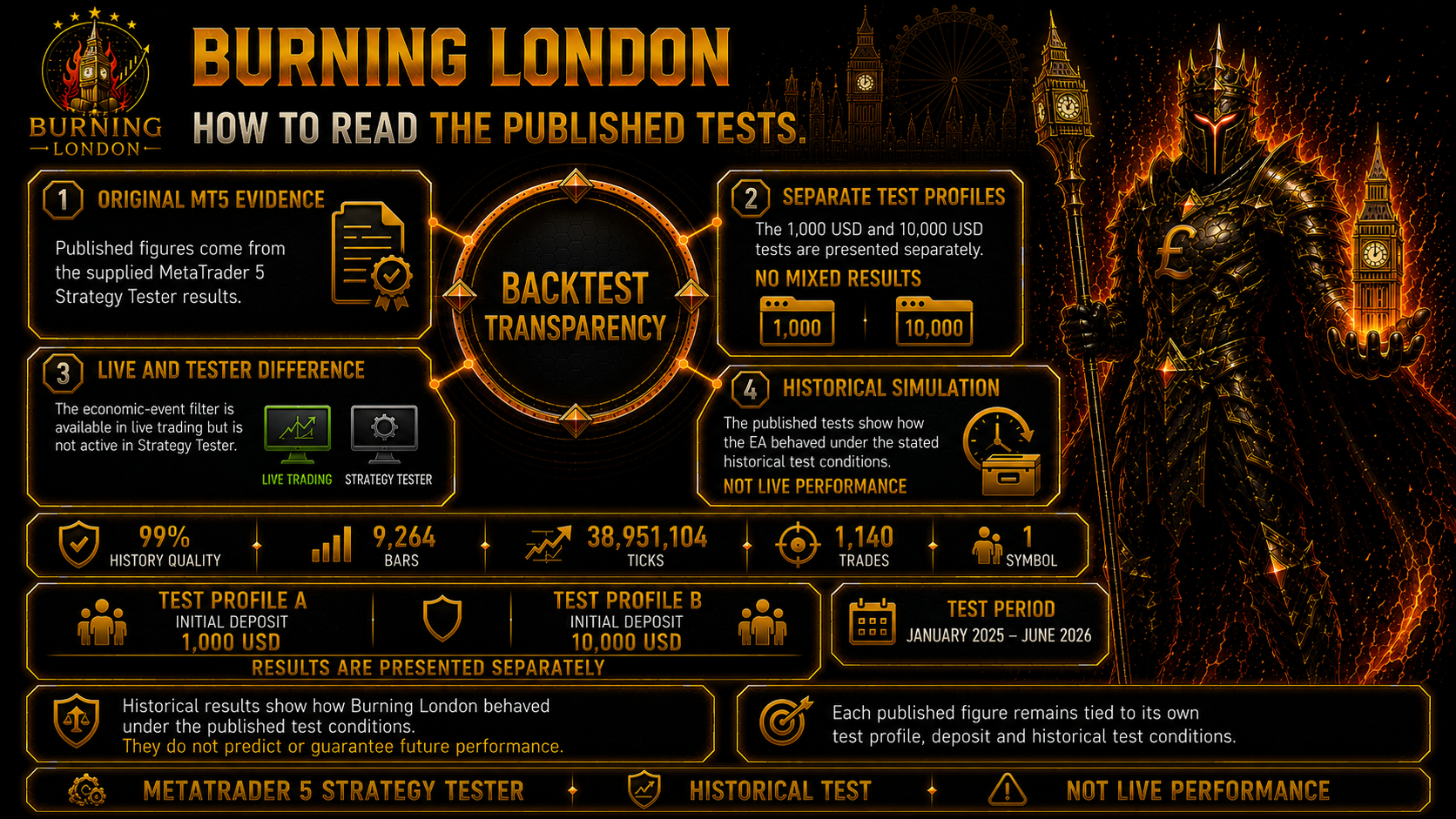
Event Filter: it is available in live trading and is not active in Strategy Tester.
Keep every figure tied to its own deposit, report and historical test conditions.
Check history quality, trade count, Profit Factor and the correct drawdown definitions.Review Balance and Equity together instead of judging the test from net profit alone.
Broker Presets and Spread Optimization
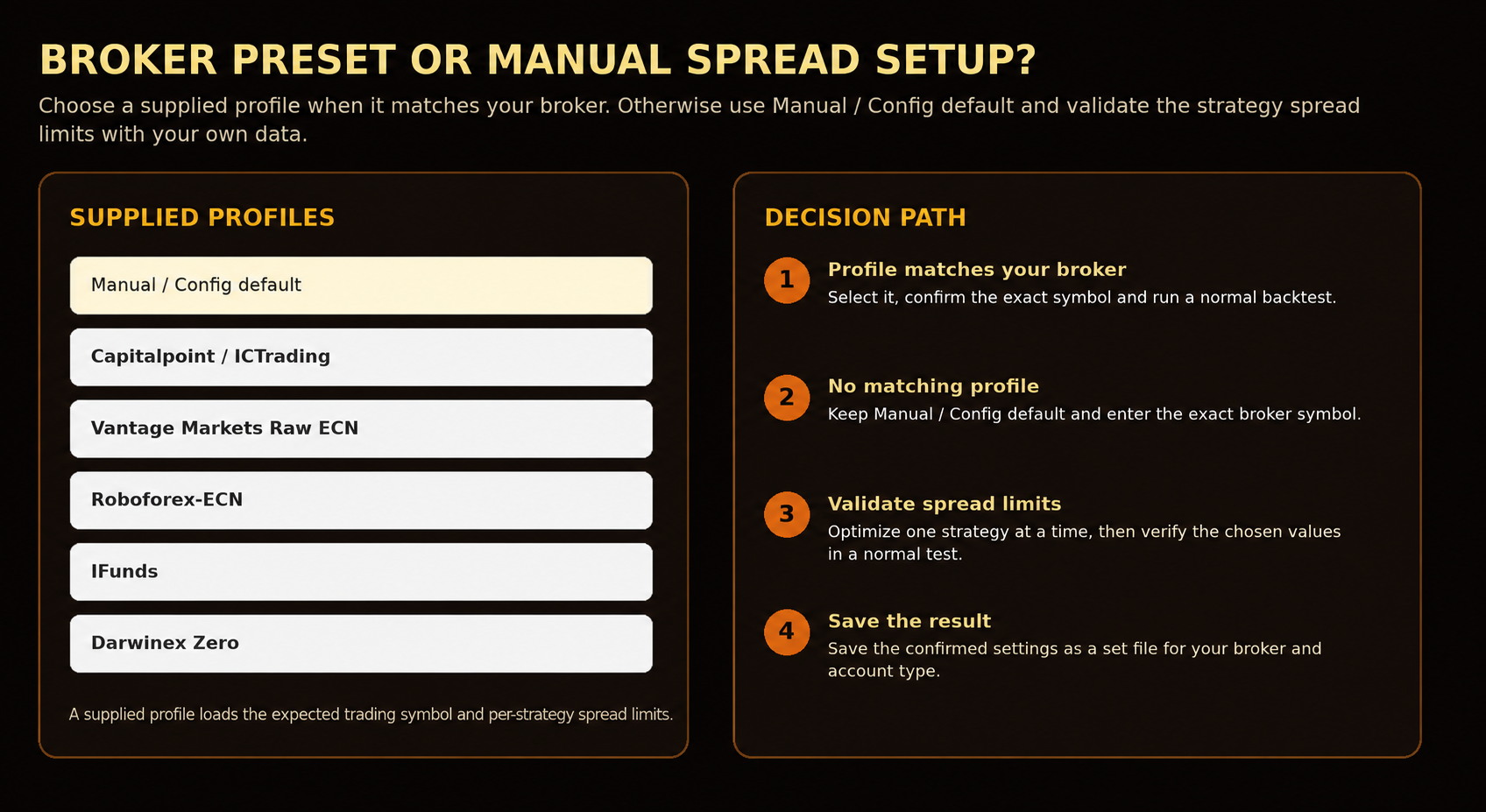
Start with the supplied broker profile when it matches your account. Use manual optimization only when no matching profile is available.
The preset loads the expected GBPUSD symbol and internal strategy spread limits. Those internal values are not published in this manual.
Matching preset
Select the matching Broker preset.
Confirm the exact GBPUSD symbol.
Leave each strategy's Max spread override at 0.
Run a normal verification backtest.
No matching preset
Use Manual / Config default.
Enter the exact broker GBPUSD symbol.
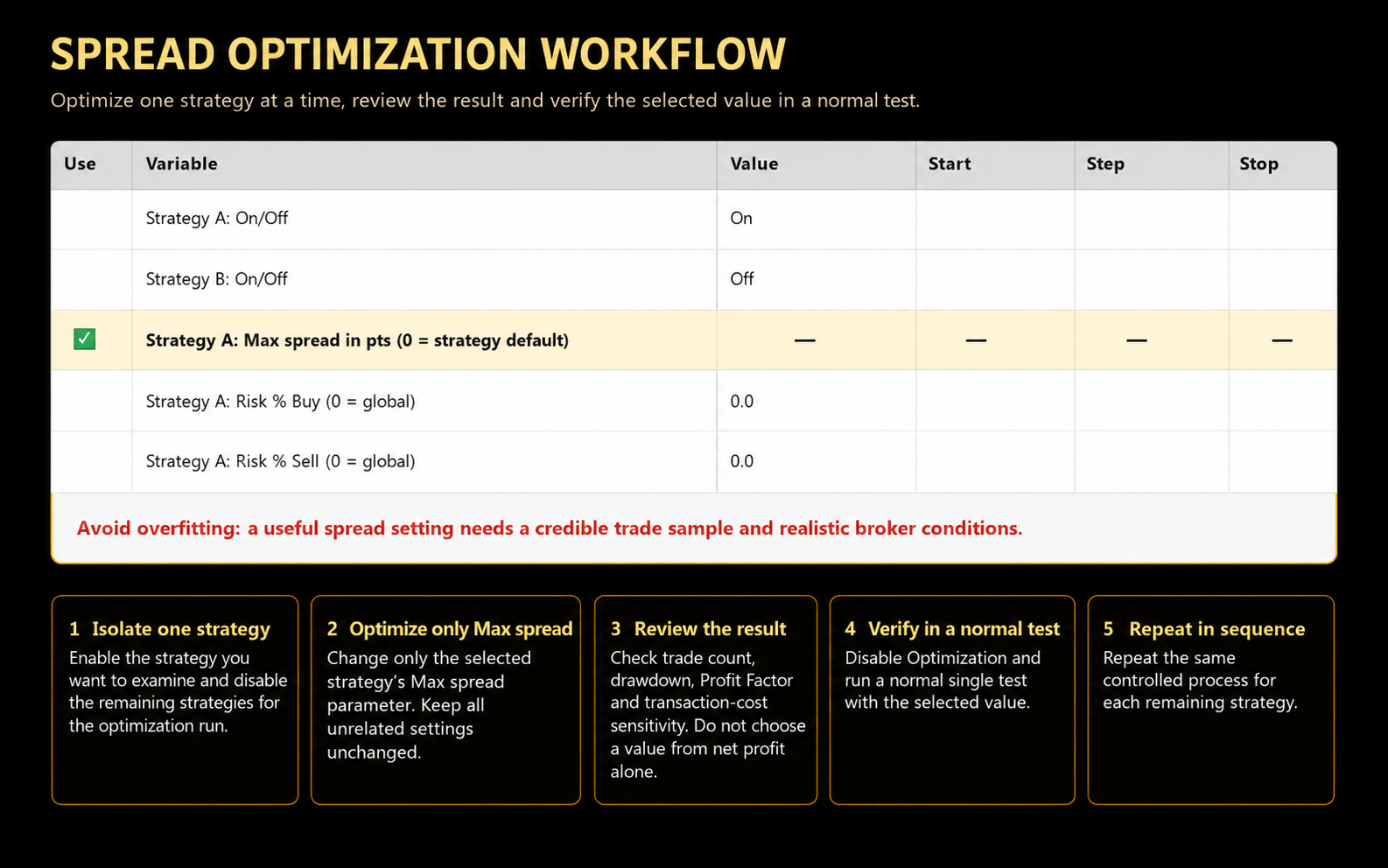
Optimize one strategy at a time.
Verify the chosen setting in a normal test.
Isolate one strategy, optimize only its Max spread field, review the result and then repeat the process for S02 to S12.
Do not choose a value only because it produced the highest profit. Keep a credible trade sample and avoid accepting unnecessarily expensive entries.
First Demo or Live Setup
After the test, attach Burning London to one chart and confirm the operating settings.
Use MetaTrader 5, open the exact broker GBPUSD symbol and confirm Hedging or Netting before the first start.
Open the exact broker GBPUSD symbol. Include any broker-specific suffix.
Attach Burning London to one chart. The internal strategies and timeframes are managed inside the EA.
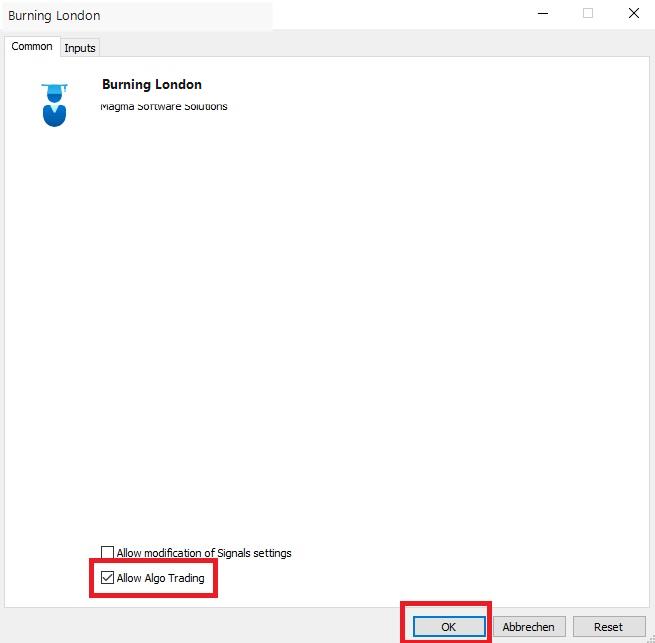
Open the Common tab and enable Allow Algo Trading.
Enable Allow Algo Trading and click OK. The main Algo Trading button in the terminal must also be active.
Next: review the full input menu in the section immediately below the dashboard.
Dashboard and Daily Operation
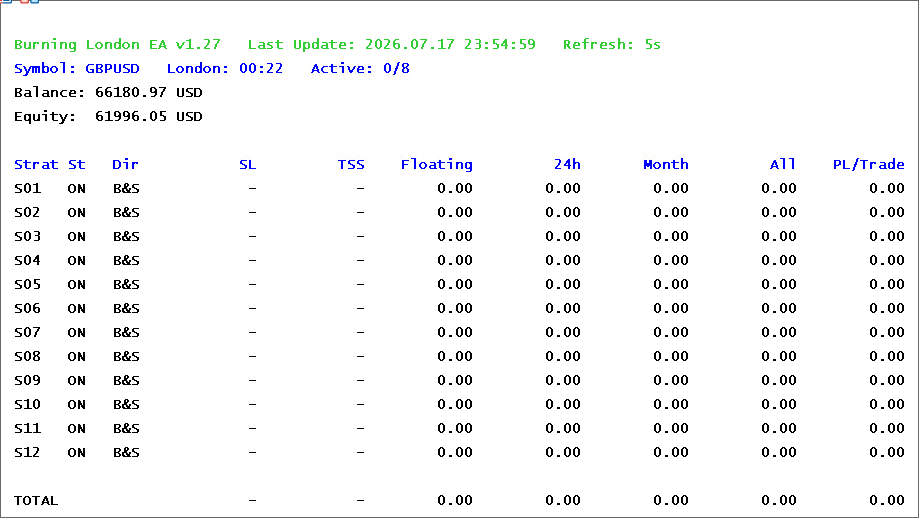
The dashboard confirms which GBPUSD symbol is active, how many strategies are running and what each strategy has contributed.
Burning London dashboard during operation. Displayed account values are only a snapshot of that terminal session.
Symbol / London / Active
The resolved GBPUSD symbol, current London time and active strategies compared with the allowed maximum.
Balance / Equity
The current account values reported by MetaTrader 5.
Strat / St / Dir
Strategy identifier, On/Off state and effective Buy/Sell direction.
SL / TSS / Floating
Current Stop Loss information, trailing-start status and open profit or loss.
24h / Month / All
Realised strategy results for the previous 24 hours, current month and recorded account history.
Terminal
Keep MetaTrader 5 connected and Algo Trading active.
Experts and Journal
Check both tabs after startup, migration and updates.
Pause EA
Use Pause EA when you want to stop new entries while existing positions remain managed.
VPS: migrate the chart again after an update. A VPS keeps MetaTrader 5 running, but it does not change the strategy or guarantee execution quality.
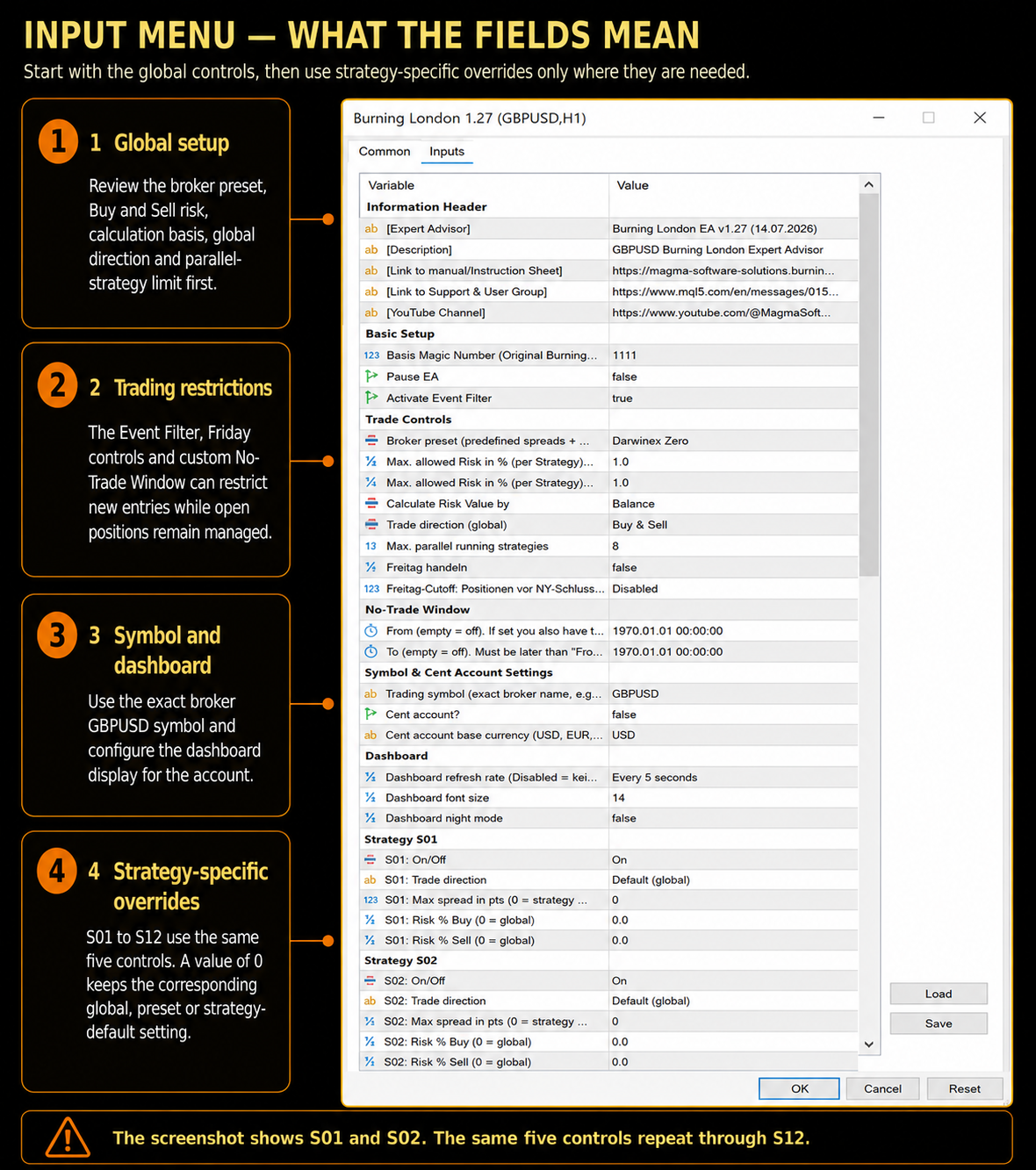
Input Menu — What the Fields Mean
The overview comes first. The detailed field explanations follow in the same order as the menu.
The labels below match the names shown in MetaTrader 5. Internal source variable names are not required.
Basic Setup
Basis Magic Number
Identifies Burning London positions. Keep the supplied value unless another EA instance uses an overlapping identifier.
Pause EA
Stops new entries while existing positions continue to be managed.
Activate Event Filter
User-selectable in live trading. It is not active in Strategy Tester.
Trade Controls
Broker preset
Select a supplied profile when it matches your broker. Otherwise use the manual or default configuration.
Max. allowed Risk in % (per Strategy) for Buy Positions
Risk-sizing target for each Buy strategy.
Max. allowed Risk in % (per Strategy) for Sell Positions
Risk-sizing target for each Sell strategy.
Calculate Risk Value by
Choose Balance or Equity as the basis for the position-size calculation.
Trade direction (global)
Allow Buy and Sell, Buy only or Sell only across the portfolio.
Max. parallel running strategies
Limits how many strategies may hold positions at the same time. Set it to 1 on a Netting account.
Freitag handeln
Controls whether new Friday trading is permitted.
Freitag-Cutoff: Positionen vor NY-Schluss schliessen
Can close selected EA positions before the New York Friday close.
No-Trade Window
From / To
Enter both times to block new entries during a user-defined period. Existing positions continue to be managed. Empty values leave the custom window disabled.
Symbol, Cent Account and Dashboard
Trade symbol
Copy the exact GBPUSD symbol from Market Watch, including any broker suffix.
Cent account?
Enables cent-account display conversion on the dashboard.
Cent account base currency
Sets the base currency used for that display conversion.
Dashboard refresh rate
Select a refresh interval or disable the dashboard for a faster backtest.
Dashboard font size / Dashboard night mode
Display settings only.
Strategy S01 to S12
All twelve strategy sections use the same five controls. Once you understand S01, the S02 to S12 sections work the same way.
S01: On/Off
On allows new entries. Off blocks new entries for this strategy. Existing positions continue to be managed.
S01: Trade direction
Follow the global direction or override it for this strategy.
S01: Max spread in pts (0 = strategy default)
0 keeps the preset or built-in value. A positive value creates a strategy-specific override.
S01: Risk % Buy (0 = global)
0 follows the global Buy risk. A positive value overrides it.
S01: Risk % Sell (0 = global)
0 follows the global Sell risk. A positive value overrides it.
Risk and Position Management
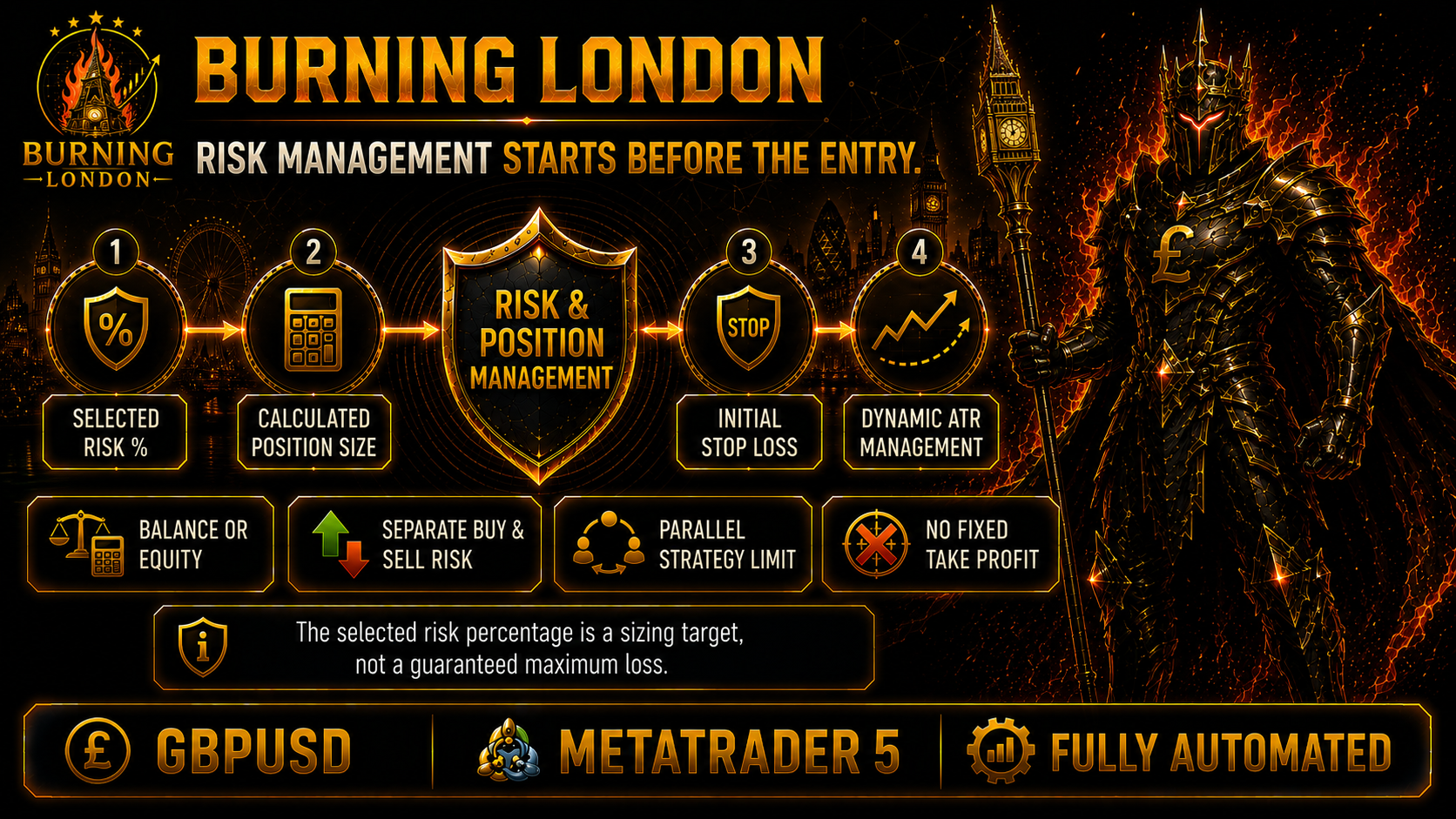
Burning London calculates the position size before entry. The selected risk target, the chosen Balance or Equity base and the initial Stop Loss distance all affect that calculation.
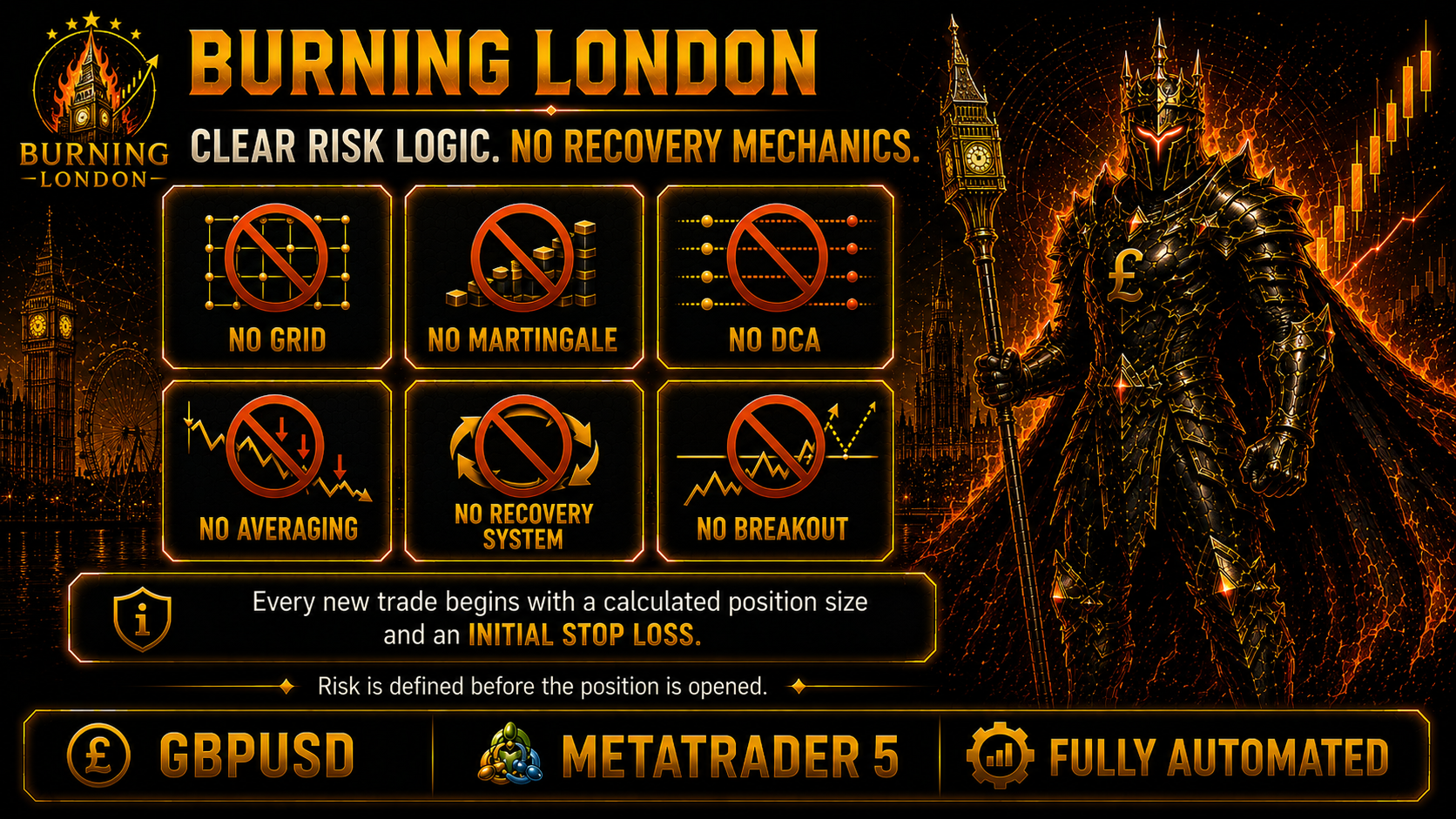
Every new trade begins with an initial Stop Loss. Open positions are then managed with ATR-based trailing instead of one fixed Take Profit.
Minimum-lot warning: if the calculated position is smaller than the broker's minimum lot size, the EA must use the minimum permitted volume. Effective risk can therefore be higher than the selected percentage on a small account.
Portfolio risk adds up: Buy and Sell percentages apply per strategy. Several strategies can carry separate risk allocations at the same time.
Risk is defined before entry; positions are then managed dynamically.No Grid, Martingale, DCA, averaging, recovery system or breakout logic.
Published Historical Results
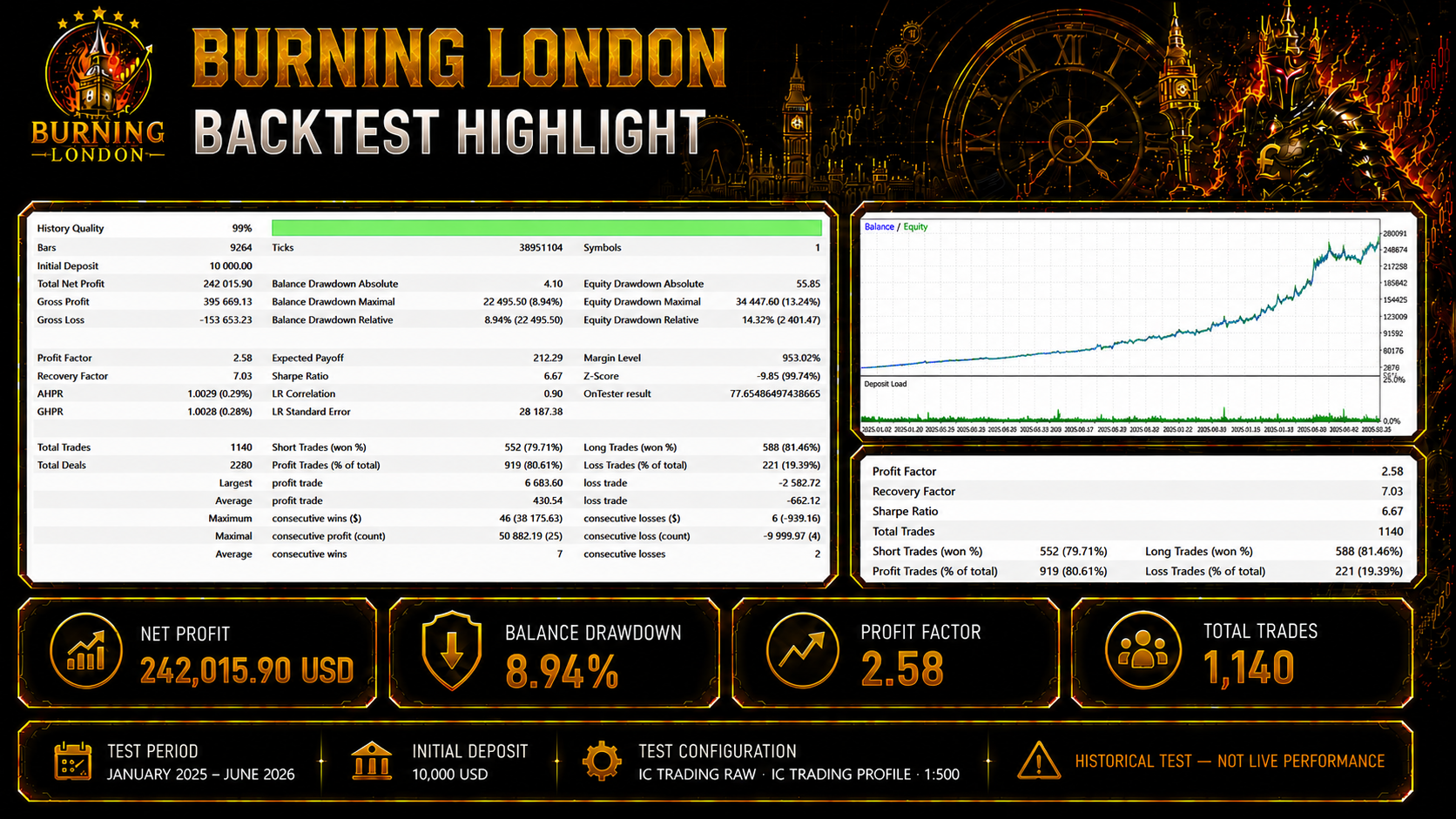
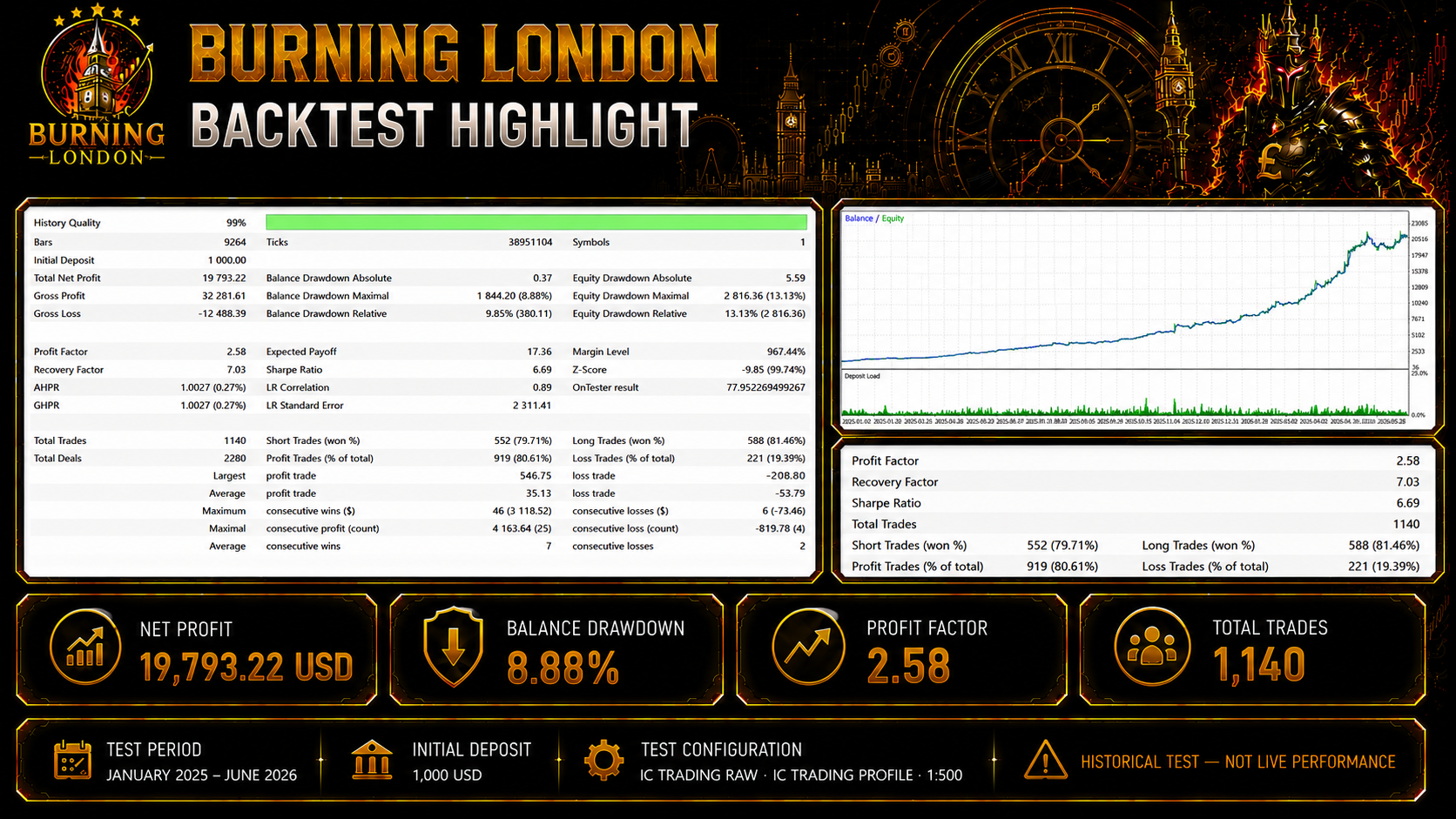
The two test profiles remain separate. Every report and curve below comes from the supplied MetaTrader 5 evidence.
Period January 2025 – June 2026Symbol GBPUSDHistory quality 99%Trades 1,140Broker profile IC Trading RawLeverage 1:500
10,000 USD Initial Deposit
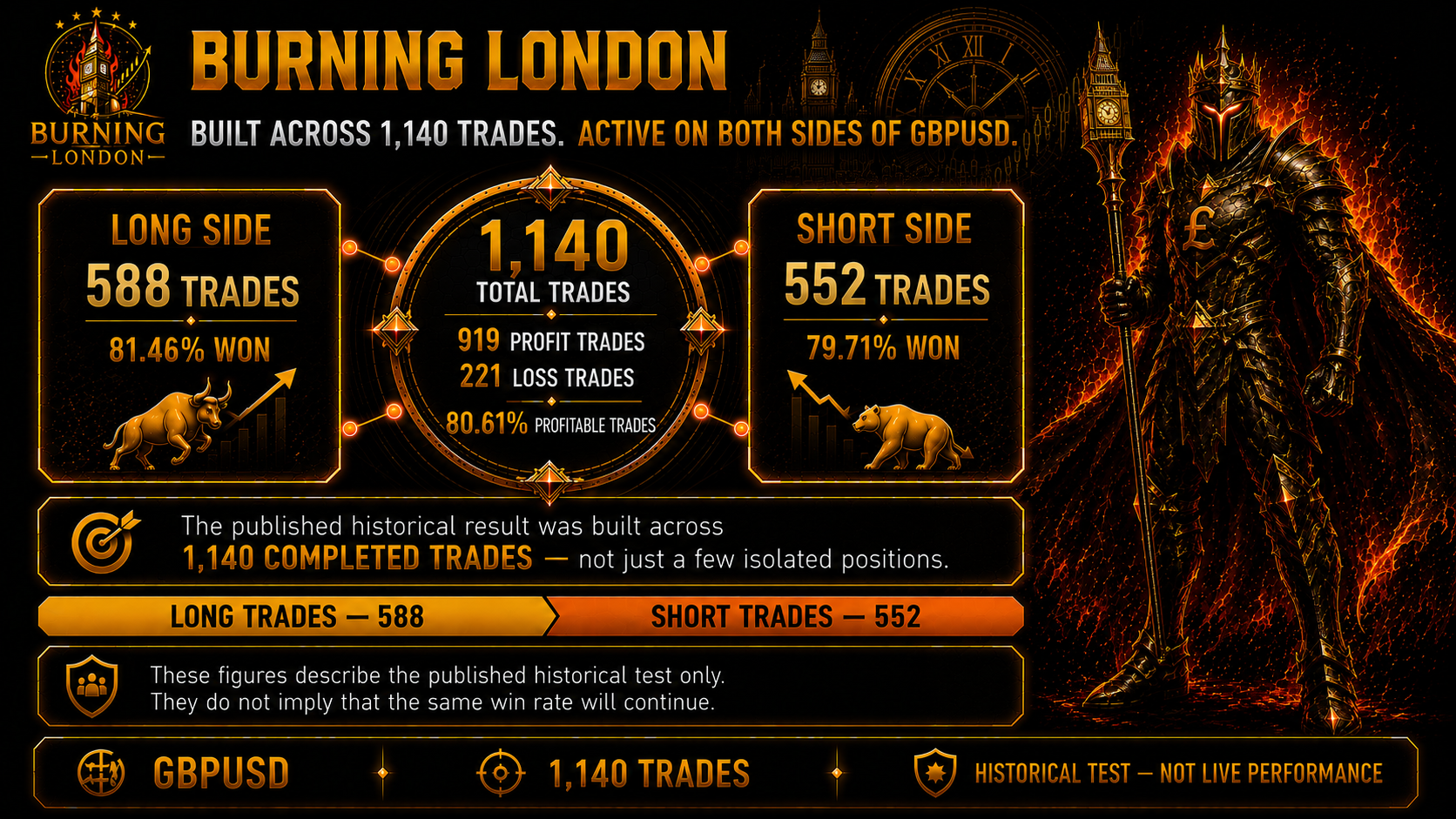
Across 1,140 completed trades, the published profile reached a Profit Factor of 2.58, a Recovery Factor of 7.03 and a Sharpe Ratio of 6.67. Relative Equity Drawdown was 14.32%.
242,015.90 USDNet profit
1,140Total trades
2.58Profit Factor
14.32%Relative Equity DD
Approved summary graphic for the 10,000 USD historical profile.Original MetaTrader 5 report.Original Balance and Equity curve with the test period shown.
1,000 USD Initial Deposit
The 1,000 USD profile completed the same 1,140-trade historical sample. It recorded a Profit Factor of 2.58, a Recovery Factor of 7.03, a Sharpe Ratio of 6.69 and relative Equity Drawdown of 13.13%.
19,793.22 USDNet profit
1,140Total trades
2.58Profit Factor
13.13%Relative Equity DD
Approved summary graphic for the 1,000 USD historical profile.Original MetaTrader 5 report.Original Balance and Equity curve with the test period shown.
These are historical Strategy Tester results, not live account performance. They do not guarantee future results.
Long and Short activity across the published historical sample.
Optional Partner Resources
These providers are optional. They are shown because they can support a practical Burning London setup, not because they are required.
IC Trading — broker profile already included
Burning London includes a matching IC Trading preset, and the published historical test configuration uses the IC Trading Raw profile.
Use the supplied preset as the starting point.
Confirm the exact GBPUSD symbol and account type.
Run your own test because spread, commission, data and execution can differ.
Affiliate disclosure: Magma Software Solutions may receive compensation when an affiliate link is used. Partner services are separate from Burning London and do not guarantee trading performance.
Updating Burning London
Pause new entries, install the update and then recheck the chart.
Before updating: set Pause EA to true. Existing positions continue to be managed while new entries are blocked. Follow the release note if it requires a flat account.
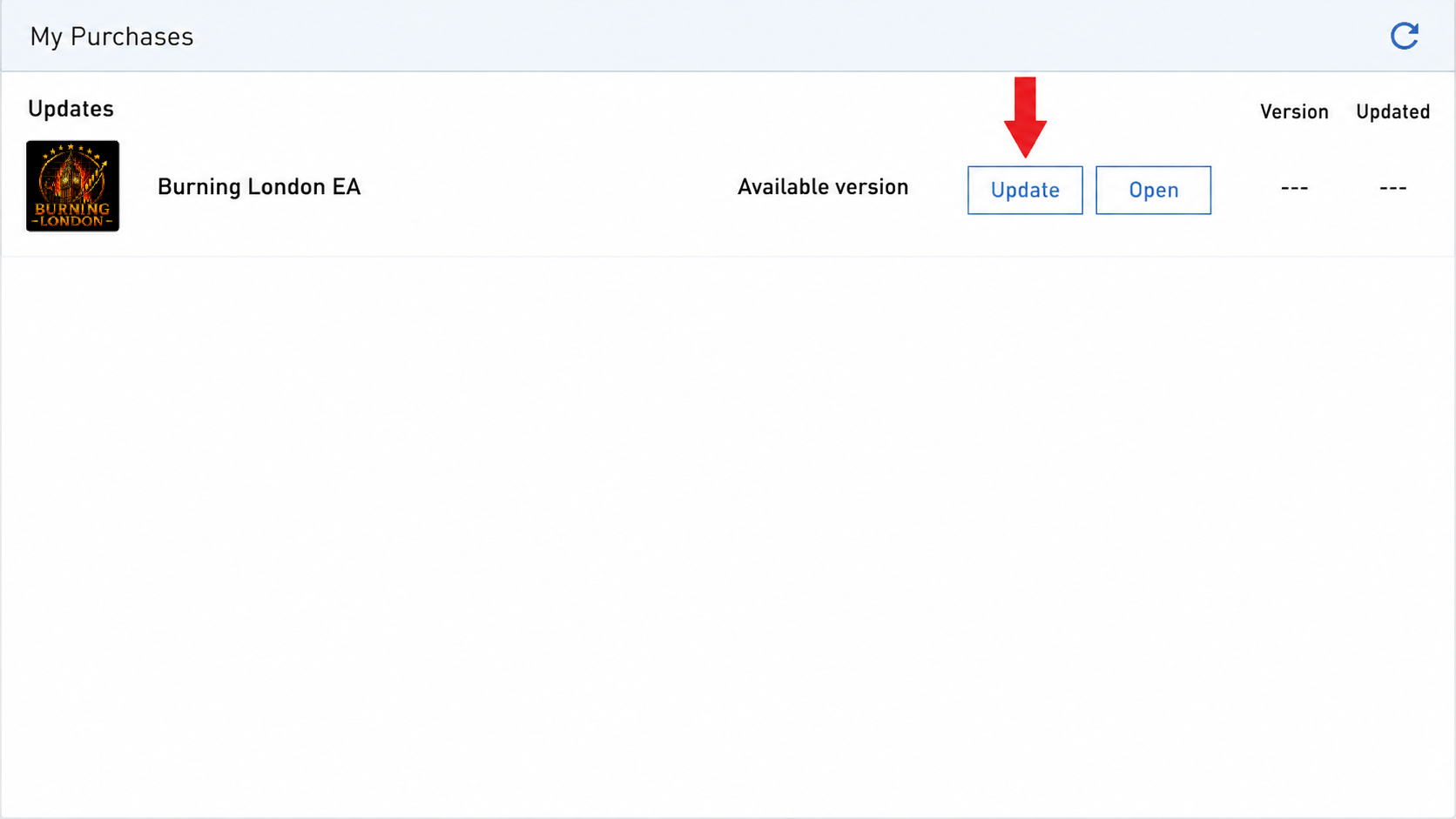
1. Open My Purchases
Open Navigator, expand Market and click My Purchases.
MQL5 VPS users: migrate the updated chart and settings again, then check the VPS Journal.
Troubleshooting
The EA does not start
Check the exact GBPUSD symbol.
Enable Algo Trading.
Check Experts and Journal.
Confirm Broker preset and account mode.
The EA runs but does not open trades
Possible reasons include strategy conditions, spread above the allowed limit, trading-time controls, Event Filter, No-Trade Window, Friday Cutoff, direction restrictions, Pause EA or the parallel-strategy limit.
The dashboard is missing
Check Dashboard refresh rate. Disabled intentionally hides the dashboard.
The selected risk looks lower than the actual trade risk
The broker's minimum lot size may be larger than the calculated volume. This is most visible on small accounts.
Backtest and live results differ
Broker data, spread, commission, execution, slippage, symbol specifications, minimum lot size and the live-only Event Filter can change results.
I need support
Open the Support & User Group and include the exact broker symbol, account mode, broker preset, input screenshot and relevant Experts or Journal messages.
Frequently Asked Questions
Does Burning London use Grid, Martingale or breakout trading?
No. It also does not use DCA, averaging or a recovery system.
Does every trade start with a Stop Loss?
Yes. Every new trade opens with an initial Stop Loss.
Can I use a Netting account?
Yes, with Max. parallel running strategies set to 1. Use Hedging for normal multi-strategy operation.
Does the Event Filter work in Strategy Tester?
No. It is user-selectable in live trading and is not active in Strategy Tester.
Do I need spread optimization?
Use a supplied preset when it matches your broker. For another broker, determine and verify the strategy-specific spread limits with Strategy Tester.
Important requirements and expectations before you begin.
Risk Disclosure
Automated trading involves risk. Historical tests describe past simulated behaviour under specific conditions. They do not predict or guarantee future results.
You can lose part or all of the capital allocated to trading. Test your broker, account mode, spread setup and risk settings before live use.
Run your own MetaTrader 5 test before making a decision.
Burning London · MetaTrader 5 GBPUSD Portfolio · Magma Software Solutions